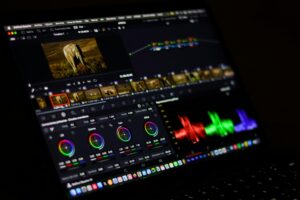
What Exactly is a LUT?
LUT stands for Look-Up Table. Think of it like a highly advanced mathematical formula for color.
Instead of you manually tweaking the brightness, contrast, highlights, and individual color wheels, a LUT takes the original color values of your video and instantly replaces them with a pre-designed set of new color values. It is essentially a pro-level color grading blueprint.
There are two main types you should know about:
Technical LUTs: These take flat, gray footage shot on professional cameras (like LOG footage) and instantly bring the normal contrast and colors back to life.
Creative LUTs: These are used to give your video a specific mood. For example, a “Teal and Orange” LUT makes skin tones pop while making backgrounds look cool and cinematic, while a vintage LUT can make your video look like an old 90s film.
How LUTs Enhance Your Video Quality
Using a LUT isn’t just about making your video look “pretty.” It solves several massive problems for creators:
Instant Mood and Storytelling: Colors change how people feel. A warm, golden LUT makes a video feel cozy and nostalgic, while a cool, blue-toned LUT makes it feel modern, clean, or even suspenseful.
Visual Consistency: If you shoot multiple clips on different days or with different lighting, your video can look messy when put together. Applying the same LUT across all your clips instantly glues them together, making your entire video look cohesive and branded.
Massive Time Saver: Manually color grading a video frame-by-frame can take hours. A LUT gives you a beautiful, professional baseline in a single click.
How to Apply LUTs in CapCut (Step-by-Step)
CapCut has made it incredibly easy to color grade your videos on both your phone and your computer. Here is how to do it.
On CapCut Mobile:
While the mobile app relies mostly on built-in presets (which CapCut labels as Filters), they work exactly like LUTs.
Open your project and select your video on the timeline.
Scroll through the bottom menu and tap on Filters.
Browse categories like “Cinematic”, “Retro”, or “Food” to find a style you like.
Crucial Step: Use the intensity slider to drag the strength down to around 40% to 60%. This keeps the colors looking natural instead of overly fake.
Hit “Apply to all” if you want your whole video to have the same look.
On CapCut Desktop (PC/Mac):
The desktop version is where you get true professional power because it allows you to import your own custom .cube LUT files that you download online.
Drag your video into the timeline.
Click on the Adjustment tab on the left menu, then click LUT.
Click the Import button and upload any custom .cube file from your computer.
Drag your imported LUT directly onto your timeline as an adjustment layer above your video.
Click the adjustment layer, go to the right-hand panel, and use the Strength slider to blend it perfectly. You can also jump into the Basic, HSL, or Curves tabs to fine-tune the brightness and contrast afterward.